 TECHERICS
How to Create a QR Code for Free (No Signup) — Step-by-Step
Create a free QR code for website, Wi-Fi, text or contact in 3 steps. No signup, download PNG or SVG in high resolution.

Contents
- What is a QR code?
- Where QR codes actually work — real-life uses
- Restaurants and cafes
- Business cards
- Shops and product packaging
- Events and tickets
- Wi-Fi in homes, offices, and guest houses
- Education and healthcare
- How to create a QR code for free — in 3 steps
- Step 1: Enter your destination
- Step 2: Customise the colours
- Step 3: Generate and download
- What each QR type does when scanned
- Static vs dynamic QR codes — which one is this?
- Choosing the error-correction level
- Download formats — PNG, JPG, WebP, or SVG?
- QR code design — make it look good without breaking it
- Printing tips — 5 checks before you print
- QR code safety — before you scan someone else's code
- Common mistakes to avoid
- Try it now
A QR code is the fastest way to send someone from paper to a screen. Point a phone camera at it, and the phone opens a website, joins a Wi-Fi network, saves a contact, or starts a text message — no typing, no searching, no app to install.
You do not need paid software to make one. In this guide you will create a free QR code in three steps, learn what each QR type does, see where QR codes actually work in real life, and learn how to print one so it actually scans.
Try it as you read: QR Code Generator
What is a QR code?
QR stands for Quick Response. It is a square pattern of black and white modules that stores information — a link, some text, a Wi-Fi password, or contact details. A phone camera reads the pattern and acts on what is inside it.
QR codes were first made in 1994 for tracking car parts in factories in Japan. The idea was simple: a barcode that could hold much more information, and could be read quickly even if part of it was damaged. Today you see them everywhere: restaurant menus, business cards, product packaging, event tickets, payment counters, and Wi-Fi passwords in cafes and offices.
The codes made by the TechErics tool are static. That means the information is stored inside the pattern itself. They never expire, they keep working without any account or subscription, and nobody needs to pay to scan them.
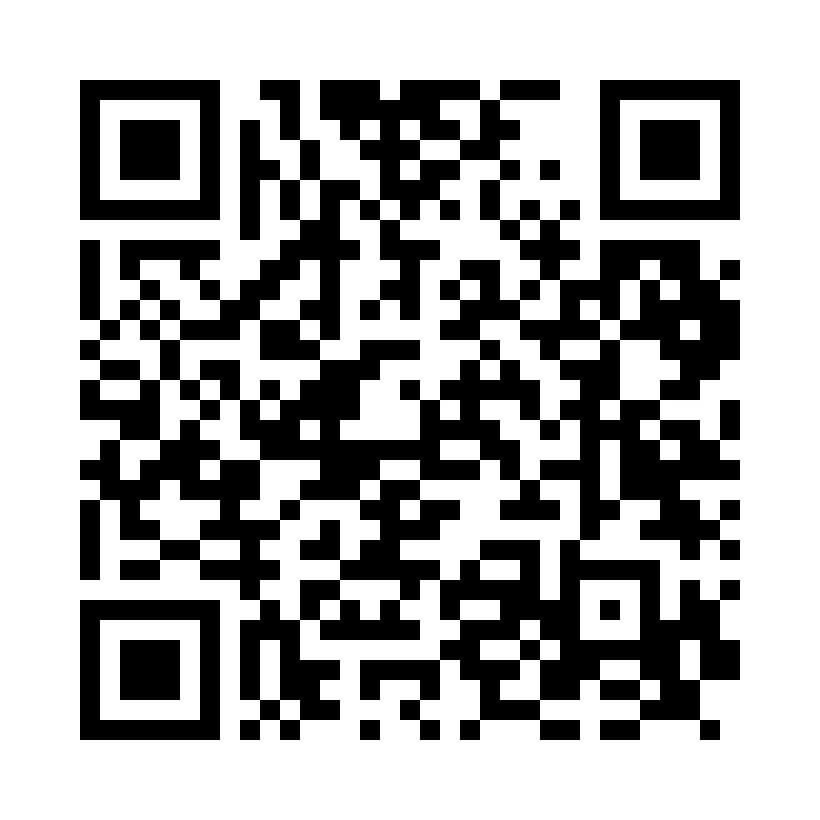
You can test this right now. The QR code below is real — scan it with your phone camera and it will open the TechErics QR Code Generator tool.
Where QR codes actually work — real-life uses
A QR code is only useful if it saves the person scanning it time or typing. Here are the places where they work best, with a real example for each.
Restaurants and cafes
A table menu with a QR code means no printed menus to clean or reprint when prices change — if the code points to a menu page on your own website. A customer scans, sees the menu on their phone, and orders. It also works for feedback: a QR code on the bill that opens a review form.
Business cards
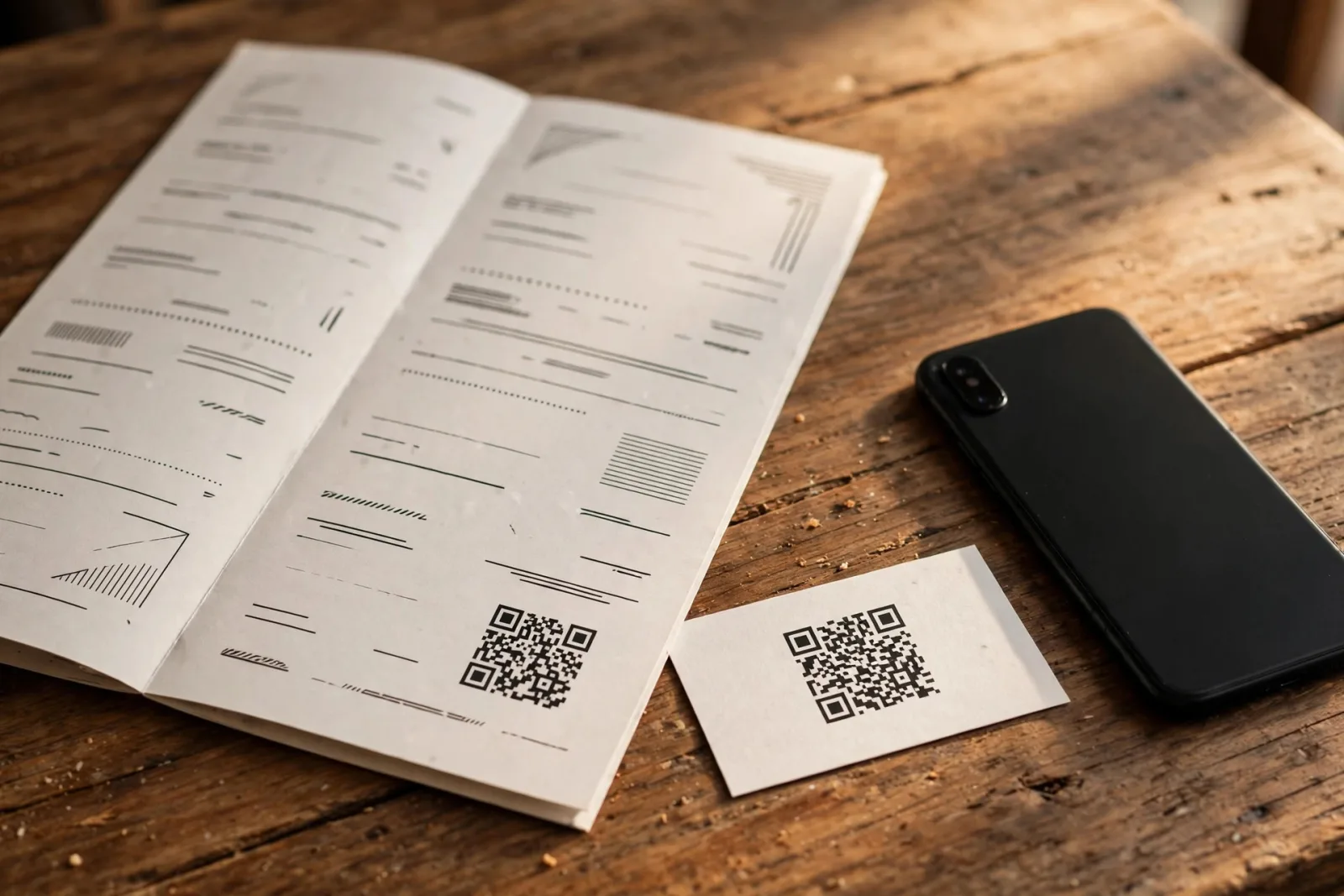
A normal business card holds a name and a phone number. A QR code on the same card can save the whole contact in one tap — name, phone, email, company, and website. The person does not have to type anything, so they are much more likely to actually save your number.
Shops and product packaging
A QR code on a product can open the manual, a how-to video, the warranty page, or a page to reorder the same product. For a small shop, a QR code at the counter can open a payment page or a Google review page.
Events and tickets
A QR code on a ticket or a poster can open the event page, a map to the venue, or a registration form. At the door, the same code can be scanned to check people in — each ticket has a different code, so it cannot be reused.
Wi-Fi in homes, offices, and guest houses
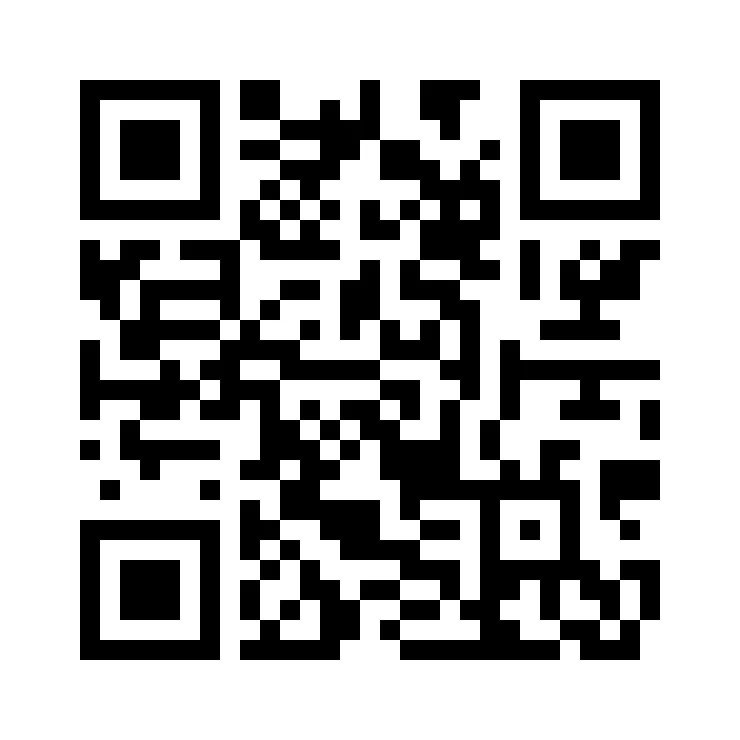
This is the most underrated use. Instead of telling every guest a long Wi-Fi password, print one QR code and stick it on the fridge or the reception desk. A guest scans it and joins the network without typing. The Wi-Fi example below is a real code — it is made for a network called TechErics-Guest, so do not expect it to join your own network, but it shows exactly what a Wi-Fi QR code looks like.
Education and healthcare
Teachers use QR codes on worksheets to link to a video or a quiz. Clinics use them on appointment cards to link to directions, a form, or a patient portal. In both cases the point is the same: the paper is short, the detail lives online.
How to create a QR code for free — in 3 steps
Step 1: Enter your destination
Open the QR Code Generator — and pick what the code should do: Website URL, Wi-Fi, Text, Contact, Email, SMS, Phone. Type or paste the destination. For a website, use the full link, starting with https://. A short, clean link works better than a very long one — long links make the pattern denser and harder to scan. For a contact code, fill in only the details you want to share. For a Wi-Fi code, double-check the password before you generate it.
Step 2: Customise the colours
Pick a foreground colour and a background colour to match your brand. Keep one rule: dark code on a light background. Light-on-dark codes and low-contrast colours fail on many phone cameras. You can use your brand colour for the pattern — dark blue, dark green, or black all work well on white. Avoid light colours for the pattern. You can also choose the error-correction level — for most uses, Medium is the right choice. If you plan to put a small logo in the middle, choose Q or H.
Step 3: Generate and download
Click Generate QR Code. Download the result in high resolution — PNG, JPG, or WebP at 512, 1024, or 2048 pixels, or SVG for print. For a business card or flyer, use SVG or the 2048-pixel PNG. A small, low-resolution image will look blurry in print and may not scan. That is it. No signup, no watermark, and no account needed.
What each QR type does when scanned
- URL — Opens the web page.
- Wi-Fi — Offers to join the network without typing the password.
- Text — Shows the text.
- Contact — Offers to save a contact card.
- Email — Opens a new email with the address (and subject) filled in.
- SMS — Opens a text message to the number.
- Phone — Offers to call the number.
The Wi-Fi code follows the standard format: WIFI:T:WPA;S:network;P:password;; Replace network with your Wi-Fi name and password with your password.
For an email code, you can also add a subject line. For a contact code, test it on both iPhone and Android before you print a hundred cards.
Static vs dynamic QR codes — which one is this?
Static QR codes store the information inside the pattern. Once printed, the content cannot change. If you print a static code for a website and later change the website address, the old code will still point to the old address. The advantage is that static codes are free, they never expire, and they work forever without a subscription.
Dynamic QR codes store a short redirect link. You can change where that link points after printing, and you can usually track how many times it was scanned. The catch is that dynamic codes almost always need a paid service — stop paying, and the code stops working.
The TechErics generator makes static codes. That is the right choice for most uses. If you think the link might change later, point the code at a page on your own website that you can update. When should you pay for a dynamic code? Only when you need to change the destination after printing, count scans, or are printing thousands of copies and cannot afford to reprint.
Choosing the error-correction level
- L (Low) — about 7%.
- M (Medium) — about 15%.
- Q (Quartile) — about 25%.
- H (High) — about 30%.
Higher levels make the pattern denser. Use M for screens and clean prints, and Q or H for printed items that may get scratched, or if you plan to place a small logo in the middle. Do not use H for everything. For a normal business card or flyer, M is enough. For a code on a delivery box, factory floor, or outdoor sign, Q or H is worth it.
Download formats — PNG, JPG, WebP, or SVG?
- PNG — Websites, social media, documents, sharp, supports transparency.
- JPG — Email, older systems, smaller file, no transparency.
- WebP — Websites, smallest file for the same quality.
- SVG — Print, business cards, flyers, posters, vector, stays sharp at any size, best for professional printing.
For print, always use SVG or the 2048-pixel PNG. For a website or WhatsApp, PNG or WebP is enough. Never use a 512-pixel image for a large poster. If you are putting the QR code on a website, compress the image first with the Image Compressor.
QR code design — make it look good without breaking it
- Contrast comes first. The pattern must be clearly darker than the background.
- Keep the quiet zone. Leave a blank margin around the code of at least four modules.
- Test the logo version. If you put a logo in the middle, use error-correction level Q or H, keep the logo small (no more than about 20% of the code width), and test it with two different phones before you print.
A common mistake is to make the code a light brand colour on a white background because it looks elegant. It will look elegant and it will not scan. Dark pattern, light background, every time.
Printing tips — 5 checks before you print
- Size: keep the printed code at least 2 x 2 cm for close-up scanning. For a poster, code width ≈ scanning distance ÷ 10. A code on a poster 5 metres away should be about 50 cm wide.
- Contrast: dark code on a light background. Test it in the light where people will actually scan it.
- Quiet zone: leave a blank margin around the code of at least four modules.
- Test first: scan the downloaded file with two different phones before sending anything to print.
- Shorter links scan better: long URLs make dense codes. Use a short, clean URL where you can.
Print one copy first, scan it in real light, and only then print the full run.
QR code safety — before you scan someone else's code
Check the preview. When you point your camera at a code, your phone shows a preview of the link before you tap it. Read it. Do not scan codes that ask for passwords or payments out of context. Be careful with codes in emails and messages — this trick is called quishing. Use your phone's built-in camera, not a random scanner app. For your own codes, make it obvious where the code goes. Put the website address or a short line of text next to the code — Scan to see our menu or Scan for Wi-Fi.
Common mistakes to avoid
- Printing too small.
- Low contrast colours.
- No quiet zone.
- Using a static code for a link that will change.
- Not testing after printing.
- Using a low-resolution image for print.
- Putting too much text in a text QR code — a short message works, a whole paragraph makes a very dense code.
If your code will not scan at all, the usual causes are low contrast colours, a code printed too small, a missing white margin, or a very long link. Try darker colours, a larger size, or a shorter URL.
Try it now
Create your own code in under a minute: QR Code Generator — Free Online Tool
Related tools: Image Compressor — shrink the image before you print it. Barcode Generator — for product labels that need a barcode instead of a QR code.
Frequently asked questions
Do these QR codes expire?
No. They are static codes — the link or text is encoded directly in the image, so they work as long as the destination exists. There is no expiry date and no subscription to keep them working.
Can I change the link after printing?
Not with a static code. The content is fixed in the pattern. If you may need to change it, point the code to a page on your own site that you can update.
Why won't my QR code scan?
The usual causes are low contrast colours, a code printed too small, a missing white margin, or a very long link. Try darker colours, a larger size, or a shorter URL. Test it with two different phones.
Can I print these QR codes on business cards and flyers?
Yes. Download the SVG or high-resolution PNG format for crystal-clear printing at any scale. SVG is best for print because it stays sharp at any size.
Do I need an app to scan a QR code?
No. Modern iPhone and Android cameras scan QR codes directly — just point the camera at the code. No separate app is needed.
Is it free? Do I need to sign up?
Yes, it is free, with no signup, no watermark, and no usage limits. The QR code is generated in your browser.
Can I put my logo in the middle of a QR code?
Yes, if you use error-correction level Q or H and keep the logo small. Test it with two different phones before you print, because the logo covers part of the pattern.
How big should a printed QR code be?
At least 2 x 2 cm for close-up scanning. For a poster, use the rule: code width ≈ scanning distance ÷ 10. A code read from 5 metres away should be about 50 cm wide.