TECHERICS
How to Pick a Colour from an Image (Free Color Picker)
Pick any colour from an image in seconds — upload a photo, click a pixel, copy the HEX, RGB or HSL code. Free, no signup.
Contents
- The short version
- How do I pick a colour from an image?
- What is a HEX code, and how is it different from RGB and HSL?
- How do I find a brand colour from a logo or screenshot?
- How do I turn picked colours into a palette?
- What mistakes should I avoid when picking colours?
- The short version — key takeaways
- Frequently asked questions
- How do I pick a colour from an image for free?
- What is the HEX code of a colour in a picture?
- Can I pick a colour from an image on my phone?
- Why is the colour I picked slightly different from the logo?
- Is my image uploaded when I use an online color picker?
- What is the difference between HEX and RGB?
The short version
A color picker from image lets you click any pixel in a photo and instantly get its exact colour code — HEX, RGB or HSL. Upload or paste the image, click the colour you want, and copy the code. The whole thing takes about ten seconds, it is free, and your image never leaves your browser.
Try it now: Image Color Picker — free, no sign-up: https://techerics.com/tools/color-picker-from-image.html
How do I pick a colour from an image?
Picking a colour from an image takes three steps, and you need no software at all.
Step 1 — Open the image in the picker. Go to the Image Color Picker and upload a photo from your device, or paste an image straight from your clipboard. The image is analysed in your browser — it is never uploaded to a server, so a client's logo or a private photo stays private.
Step 2 — Click the exact pixel you want. Move your cursor over the image and click the spot whose colour you need. The tool reads that single pixel and shows its colour code immediately. If the area is flat — a solid logo background, a painted wall, a sky — click the centre of it, not the edge. Edges are where two colours blend, and the pixel there is a mix of both, not the colour you actually want.
Step 3 — Copy the code. The tool shows the colour as HEX (like #0E7C7B), RGB (like rgb(14, 124, 123)) and HSL (like hsl(179, 80%, 27%)). Copy whichever format your app needs. Most design tools and websites accept HEX directly, so that is usually the one to grab.
That is the whole process. The tool also builds an automatic palette of the image's main colours, so if you only need "the five colours in this photo", you do not even have to click around — they are listed for you, with a copy-all button.
What is a HEX code, and how is it different from RGB and HSL?
A HEX code, an RGB value and an HSL value are three ways of writing down the exact same colour. The tool gives you all three because different apps expect different formats.
| Format | What it looks like | When to use it |
|---|---|---|
| HEX | #0E7C7B — a # plus 6 characters (0–9, A–F) | Websites, CSS, most design tools; the shortest, most pasted format |
| RGB | rgb(14, 124, 123) — red, green, blue, each 0–255 | Design software, image editors, anywhere you set colour channels |
| HSL | hsl(179, 80%, 27%) — hue 0–360°, saturation %, lightness % | When you want to adjust a colour: raise lightness to lighten it, lower saturation to mute it |
The six characters in a HEX code are just the red, green and blue values written in hexadecimal: the first two are red, the middle two are green, the last two are blue. #FF0000 is pure red, #00FF00 is pure green, #000000 is black and #FFFFFF is white. Nothing mysterious — it is the same three numbers, packed into a shorter string.
If you only remember one rule, remember this: HEX for the web, RGB for apps that ask for channels, HSL when you want to tweak the colour. The picker hands you all three at once, so you never have to convert anything by hand.
How do I find a brand colour from a logo or screenshot?
Finding a brand colour is the most common reason people pick colours from images — a logo in a presentation, a screenshot of a website, a photo of a product. The method is the same, but the source image decides how accurate the result is.
Use the cleanest source you can find. A PNG logo or an SVG exported as PNG gives the truest colour, because flat areas in a PNG are exactly one colour. A JPEG photo shifts colours slightly when it compresses them, so a JPEG screenshot can be a few points off the real brand colour. A photo of a screen is worse still — the camera adds its own colour cast, and night mode or a blue-light filter on the screen changes everything. If the colour matters — a client brand, a print job — get the original file, not a photo of it.
Click the middle of a flat area. In a logo, click the centre of the largest solid block of the colour. Never click on text edges, borders, or anti-aliased curves: those pixels are blends between the colour and whatever sits behind it, and the code you copy will be a muddy in-between shade. If the logo sits on a white background, zoom in first and check you are clicking colour, not white.
Check the result against the image. The picker shows a swatch of the colour you clicked. Hold it next to the original: if the swatch looks like the logo colour, you have it. If it looks lighter or greyer, you probably clicked an edge pixel — click again, a few pixels further into the solid area.
How do I turn picked colours into a palette?
One colour is rarely enough — a design needs a small set of colours that work together. The picker gives you a head start: it automatically extracts the main colours from your image into a palette. From there, build the palette in three moves.
Start with the dominant colour. Every image has one colour that covers the most area — the sky in a landscape, the wall in a room photo. That is your base. Pick it first.
Add one accent and one neutral. The accent is the colour that stands out most against the base — the red boat on a blue lake, the yellow sign on a grey street. The neutral is a quiet colour from the same image: a soft grey, a warm off-white, a dark brown. Base + accent + neutral covers most designs: the base fills space, the accent draws the eye, the neutral keeps text readable.
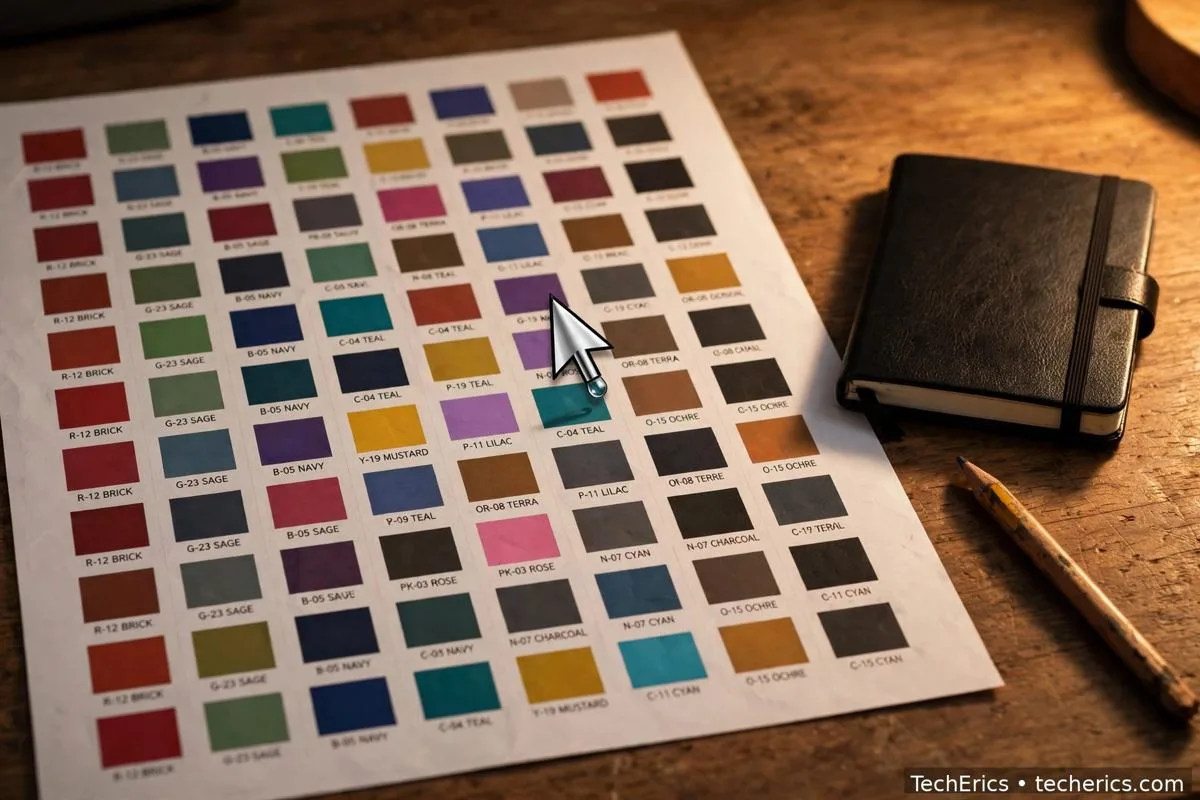
Test the combination before you commit. Paste the colours into a palette generator to see them side by side, and run the text colour against the background through a contrast checker. A palette that looks good as separate swatches can still fail when dark text sits on a mid-tone background — the contrast check catches that before your readers do. The TechErics tools directory has both a palette generator and a contrast checker: https://techerics.com/tools/
One small habit saves time on bigger jobs: the picker keeps a history of every colour you click in a session, so you can pick five or six colours from different parts of an image and copy them all at once instead of going back and forth. Work through the image once — base first, then accent, then neutrals — and export the whole set together.
What mistakes should I avoid when picking colours?
Most wrong colours come from the same few mistakes, and all of them are easy to avoid once you know them.
- Clicking an edge pixel. The border between two colours is a blend of both. Always click the centre of a flat area, a few pixels in from any edge.
- Picking from a compressed screenshot. JPEG compression smears colours around sharp edges and shifts flat areas. Use a PNG source when the exact code matters.
- Picking from a photo of a screen. Screens have colour temperature, brightness and filters; a camera adds more. The code you get is the colour of the photo, not the colour on the screen.
- Trusting a colour from a dark or tinted photo. A photo taken in warm evening light makes every colour warmer than it really is. Pick from the original digital file, not a re-photograph.
- Copying the wrong format. Pasting an RGB value into a field that expects HEX (or the other way round) either errors out or silently gives you a different colour. Match the format to the field — the picker shows all three, so take the one your app asks for.
- Forgetting to check contrast. A beautiful brand colour can be unreadable as a text colour on a light background. Check the pair with a contrast checker before publishing.
The short version — key takeaways
- A color picker from image turns any pixel in a photo into a HEX, RGB or HSL code in three steps: upload, click, copy.
- Click the centre of a flat area, never an edge — edge pixels are blends, not the real colour.
- HEX is the format for websites, RGB for design apps, HSL when you want to adjust a colour.
- PNG and SVG sources give truer colours than JPEG screenshots; never pick from a photo of a screen.
- Build a palette from one base colour, one accent and one neutral, then check text contrast before you use it.
- Your image is analysed in the browser and never uploaded — the free tool is at https://techerics.com/tools/color-picker-from-image.html
Frequently asked questions
How do I pick a colour from an image for free?
Open a free online image color picker, upload or paste your image, and click the pixel you want. The tool shows the colour as HEX, RGB and HSL instantly. The TechErics Image Color Picker does this free with no signup: https://techerics.com/tools/color-picker-from-image.html
What is the HEX code of a colour in a picture?
The HEX code is the six-character code (like #0E7C7B) that identifies one exact colour. Upload the picture to a color picker, click the colour, and the HEX code is shown next to the swatch — copy it and paste it into your website, CSS or design tool.
Can I pick a colour from an image on my phone?
Yes. Open the picker in your phone's browser, upload the image from your gallery or take a photo, then tap the colour you want. The same HEX, RGB and HSL codes appear, and you can copy them straight into a design app on the same phone.
Why is the colour I picked slightly different from the logo?
You probably clicked an edge pixel, where the logo colour blends with the background, or the image is a JPEG, which shifts colours when it compresses. Click the centre of a solid area in a PNG version of the logo and the code will match.
Is my image uploaded when I use an online color picker?
With the TechErics tool, no — the image is analysed entirely in your browser and never sent to a server. Other tools vary, so check before uploading a private or client image; a tool that asks for an account or uploads the file is doing something else.
What is the difference between HEX and RGB?
They describe the same colour in different notation. HEX writes the red, green and blue values as six hexadecimal characters (#0E7C7B); RGB writes them as three decimal numbers from 0 to 255 (rgb(14, 124, 123)). Use HEX on the web and RGB where an app asks for channel values.
Last updated: 24 November 2026. The Image Color Picker is free at https://techerics.com/tools/color-picker-from-image.html — no signup, your image never leaves your browser.