TECHERICS
How to Test a Regex Online: Debug Patterns Step by Step
Contents
- The short version
- How do I test a regex online in 3 steps?
- How do I read the match table and capture groups?
- How do I use the replace preview to check my pattern?
- How do I catch the greedy-match bug?
- Which flags should I use, and when?
- How do I use lookaheads to write a validation rule?
- What mistakes should I avoid when testing a regex?
- The short version — key takeaways
The short version
To test a regex online, paste your pattern into a regex tester, add your test text, and read the live highlighted matches — if the right words light up and the wrong ones do not, the pattern works. A good tester also shows a match table with each match's position and capture groups, plus a replace preview, so you can debug the pattern before it ever reaches your code. The free Tech Erics Regex Tester does all of this in your browser, with no signup and no data sent anywhere.
Try it now: Regex Tester & Debugger — free, no sign-up: https://techerics.com/tools/regex-tester.html
How do I test a regex online in 3 steps?
Testing a regex takes three steps, and the whole loop takes under a minute once you know the order.
Step 1 — Paste the pattern. Type or paste your regular expression into the pattern field. In the TechErics tester the field sits between two / delimiters, with a separate Flags field next to it — the default pattern is an email matcher, \b[\w.+-]+@[\w-]+\.[\w.]+\b, with the flags gi already filled in. If you are starting from scratch, pick one of the example buttons instead — Email, URL, Phone, Date, Hex colour or IPv4 — and the tool loads a working pattern for you to edit.
Step 2 — Add test text that includes both hits and misses. Paste a realistic sample into the test string editor: the text your pattern will actually run against. The key habit is to include text that should not match as well as text that should. The default test string does this well — it has two email addresses, a URL, a date, a hex colour and an IP address, so an email pattern lights up exactly two matches and ignores the rest. If your test text only contains matches, a broken pattern that matches everything will look correct.
Step 3 — Read the matches, not just the highlights. The tester highlights every match in the preview and shows a live count — "2 matches" for the default email example. Below that, the match table lists each match with its index (where it starts) and its capture groups: support@techerics.com at index 14, support@example.org at index 39. That table is where debugging happens. Highlights tell you something matched; the table tells you what matched, where, and which part each group captured.
Run the loop again after every change: tweak the pattern, watch the highlights and the table update live, and stop when the matches are exactly the ones you want — no more, no fewer.
How do I read the match table and capture groups?
The match table has four columns, and each one answers a different debugging question.
| Column | What it tells you |
|---|---|
# | Which match this is, in order — useful when a pattern matches many times |
MATCH | The exact text that was matched, so you can spot over-matching at a glance |
INDEX | The character position where the match starts — two matches with the same text at different indexes are different matches |
GROUPS | What each (...) capture group caught inside that match |
Capture groups are the part most people skip, and they are the part that breaks replacements. Take the date pattern (\d{4})-(\d{2})-(\d{2}) run against 2026-11-10. The whole match is 2026-11-10, but group 1 is 2026, group 2 is 11 and group 3 is 10. If the groups column shows the wrong pieces — say group 1 caught 2026-11 — your parentheses are in the wrong place, and any replacement built on $1 will be wrong too. Check the groups before you trust the replacement.
One more habit: test with a string that contains the pattern twice, with different values. A pattern that works on the first occurrence and fails on the second usually has a missing g flag or an anchor (^ or $) that only fits one position.
How do I use the replace preview to check my pattern?
The replace preview is the fastest way to prove a pattern is safe to use in real code, because it shows the result of the replacement, not just the match.
Type a replacement into the "Replace with" field — use $1, $2 for groups, or $<name> for a named group. The tool's own guide gives the classic example: pattern (\d{4})-(\d{2})-(\d{2}), replacement $3/$2/$1, turns the date 2026-11-10 into 10/11/2026. The year moves to the end, the day moves to the front, and the groups do the reordering — no manual editing.
Use the preview for three checks before you copy a pattern into your code:
- Does the replacement land on the right text? If the preview changes words you did not intend to touch, the pattern is too broad — narrow it before you ship it.
- Are the groups in the right order? A swapped
$2and$3is invisible in the match table but obvious in the preview output. - Does anything survive that should not? Run the preview on text with a near-miss — an email-like string that is not quite an email — and confirm it passes through unchanged.
If the preview looks right on two or three different inputs, the pattern is ready. If it only looks right on one, keep testing.
How do I catch the greedy-match bug?
The greedy-match bug is the most common regex surprise, and a tester makes it visible in seconds.
A quantifier like .* is greedy by default: it grabs as much text as it possibly can. Run <.*> against <b>bold</b> and <i>italic</i> and the single match spans the whole line — from the first < to the very last >. That is almost never what you wanted; you wanted two small matches, <b> and </b>, or the two tags separately.
Add a ? after the quantifier to make it lazy: <.*?> stops at the first > it meets, giving you the small matches. In the tester, run both versions against the same test string and compare the match tables — the greedy version shows one long match, the lazy version shows several short ones. The photo below shows the same difference on paper: one long highlighted span versus several short ones.
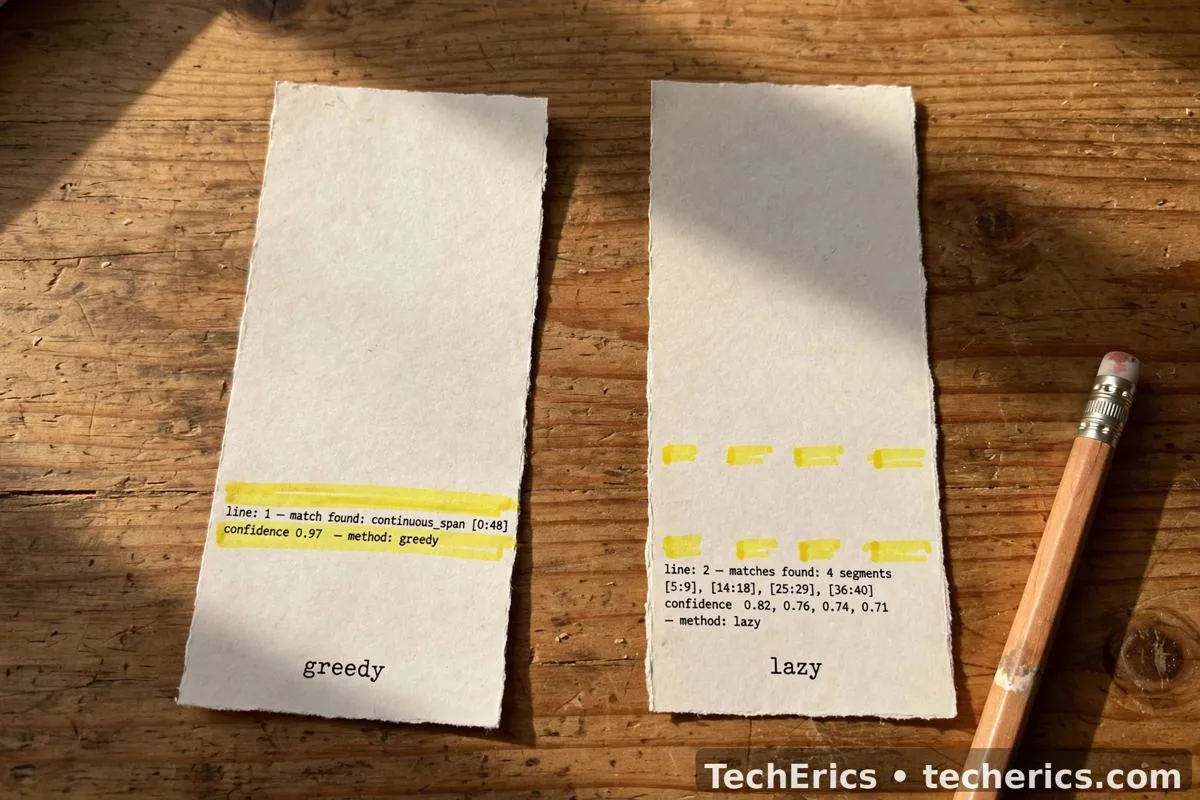
The rule to remember: greedy takes the most it can, lazy takes the least it can. When a match is mysteriously long, add ? after * or + and re-test. When a match is mysteriously short, check whether a lazy quantifier is stopping too early.
Which flags should I use, and when?
Flags change how the whole pattern behaves, and the tester lets you toggle them and watch the matches change live. The JavaScript engine in the TechErics tool supports these:
| Flag | What it does | Use it when |
|---|---|---|
g | Global — find all matches, not just the first | Almost always, when you want every match in the text |
i | Case-insensitive | Matching words regardless of upper/lower case |
m | Multiline — ^ and $ match at line starts/ends | Testing multi-line text, one match per line |
s | Dot-all — . also matches newlines | A match can span across line breaks |
u | Unicode mode | Matching emoji, non-English scripts, or Unicode properties |
y, d, v | Sticky, indices, Unicode sets (browser-supported) | Advanced cases — see the tool's FAQ |
Two flag mistakes cause most confusion. First, forgetting g: without it, the tester finds only the first match, and a pattern that should match ten times looks like it matches once. Second, forgetting m on multi-line text: ^ without m only matches the very start of the whole string, so a pattern like ^\d+ finds a number on the first line and silently misses the same number on every other line. When a pattern works on one line and fails on the next, check the flags before you rewrite the pattern.
How do I use lookaheads to write a validation rule?
Lookaheads let you say "this must be true here" without consuming any characters — and they are the clean way to write password-style validation rules.
The pattern ^(?=.*\d).{8,}$ means: from the start of the string, look ahead and confirm there is at least one digit somewhere ((?=.*\d)), then match eight or more characters of anything (.{8,}$). The lookahead checks the condition; the rest does the matching. Test it with password1 (matches), password (no digit — fails) and pass1 (too short — fails), and the tester shows exactly which condition each input breaks.
The same idea works for other "must contain" rules: (?=.*[A-Z]) for an uppercase letter, (?=.*[@#$]) for a symbol. Stack two or three lookaheads at the start of a pattern and you have a readable validation rule instead of a single unreadable character class. Test each lookahead separately first — add one, confirm it matches and fails correctly, then add the next — because a rule with three conditions and one wrong lookahead fails on everything and tells you nothing about which part is wrong.
What mistakes should I avoid when testing a regex?
Most regex failures come from the same few mistakes, and a tester catches all of them if you test the right inputs.
- An unescaped dot.
.means "any character", soexample.comas a pattern also matchesexampleXcom. Escape it —example\.com— and re-test with a near-miss likeexampleXcomto prove the fix. - Forgetting the anchors. Without
^...$, a pattern like\d{10}matches ten digits inside a longer number too. If you need the whole string to be the pattern, anchor both ends and test with a longer string. - Testing only with matches. A pattern that matches everything passes a test that only contains matches. Always include text that should not match.
- Copying a pattern into the wrong engine. The tester uses the JavaScript regex engine — the same one your browser, Node.js and TypeScript use. Python, PHP and other languages differ in small ways (lookbehind support, flag letters), so a pattern tested here is guaranteed for JavaScript, and needs a check before use elsewhere. The tool's FAQ covers the differences.
- Using regex to validate email or parse HTML. A simple email pattern like the default one is fine for finding addresses in text, but it is not a complete email validator — real email addresses have edge cases no short pattern covers. And HTML is not a regular language: use a parser, not a pattern. The tester is for finding and replacing text, not for either of those jobs.
- Trusting one test string. One input proves a pattern works once. Three inputs — a normal case, an edge case and a near-miss — prove it works.
The short version — key takeaways
- Test a regex in three steps: paste the pattern, add test text with both hits and misses, and read the match table — not just the highlights.
- The match table's INDEX and GROUPS columns are where debugging happens; highlights alone hide group errors.
- Use the replace preview (
$1,$2,$<name>) to check the result before the pattern reaches your code — the date-flip(\d{4})-(\d{2})-(\d{2})→$3/$2/$1is the classic check. - Greedy
.*grabs the most it can; lazy.*?grabs the least — when a match is too long, add?and re-test. - Use
gfor all matches andmfor multi-line text; without them, patterns silently find only the first match or the first line. - Test in the JavaScript engine the tool uses, and test three inputs — normal, edge and near-miss — before trusting a pattern.
- The free tester is at https://techerics.com/tools/regex-tester.html — matching runs in your browser, nothing is uploaded.
Last updated: 24 November 2026. The Regex Tester & Debugger is free at https://techerics.com/tools/regex-tester.html — no signup, your test text never leaves your browser. For ready-made patterns, see the Regex Cheat Sheet: https://techerics.com/blog/regex-cheat-sheet-patterns-developers-should-know/
Frequently asked questions
How do I test a regex online for free?
Open a free online regex tester, paste your pattern and your test text, and read the live highlighted matches and the match table. The TechErics Regex Tester does this free with no signup: https://techerics.com/tools/regex-tester.html
Which regex engine does the tester use?
JavaScript (ECMAScript) — the same engine your browser, Node.js and TypeScript use. Patterns tested here work as-is in JavaScript code; Python, PHP and other languages differ in small ways, so check before copying a pattern elsewhere.
What do the flags g, i, m and s do?
g finds all matches instead of just the first, i ignores upper/lower case, m makes ^ and $ work at each line start and end, and s lets . match newlines too. The tool also supports u, and y, d and v in browsers that offer them.
Why does my regex match too much text?
Your quantifier is probably greedy — .* grabs as much as it can. Add ? to make it lazy (.*?) and re-test: the match should shrink to the smallest span. If it is still too long, check for a missing anchor or an unescaped .
Can I use the tester to validate an email address?
Only loosely. The tester's email pattern finds addresses in text, but a short pattern cannot cover every valid email address. Use it to find emails, not as a complete validator — and never use regex to parse HTML; use a parser instead.
Is my test text sent to a server?
No. With the TechErics tool, matching runs entirely in your browser — your pattern and test text never leave your device. That makes it safe for test strings containing real data, though you should still avoid pasting secrets anywhere.