TECHERICS
What Is My IP Address? How to Check IP Location for Free
Check your public IP address, location, ISP and timezone for free. No signup, works for IPv4 and IPv6.
Contents
- What is an IP address?
- IPv4 vs IPv6 — the two kinds of IP address
- How to check your IP address — in 3 steps
- Step 1: Open the IP Lookup tool
- Step 2: Read your own details, or look up another address
- Step 3: Read the results
- What an IP lookup shows you
- Why does my IP location show the wrong city?
- What an IP lookup cannot tell you
- Public vs private IP — which one do websites see?
- How to check if your VPN is working
- IP lookup vs WHOIS — which one do you need?
- Common mistakes to avoid
- Try it now
Every device on the internet has an IP address — a number that works like a return address on a letter. When you open a website, watch a video, or send a message, your IP address is how the reply finds its way back to you. It also carries a rough idea of where you are: your country, your city, and the company that provides your internet.
You can see all of this in a few seconds, for free, without signing up anywhere. This guide shows you how to check your own IP address and location, explains what each detail means, and clears up what an IP lookup can — and cannot — tell anyone about you.
Check yours as you read: IP Address Lookup
What is an IP address?
IP stands for Internet Protocol. An IP address is a unique label given to a device on a network, so data sent to it arrives at the right place. Without it, the internet would have no way to know where to send the page you asked for.
Your home does not have one fixed public address printed on the wall. Your internet provider (ISP) assigns your router a public IP address, and every device in your home — phone, laptop, TV — shares that one public address when it talks to the internet. Inside your home network, each device also has its own private address, which only works inside the house. The address websites see is the public one.
Most home connections get a dynamic public IP, which means it can change from time to time — for example, when your router restarts or your provider reassigns addresses. Some business connections pay for a static IP that stays the same. Either way, the lookup works the same: open the tool, and it shows the address you are using right now.
IPv4 vs IPv6 — the two kinds of IP address
There are two versions in use today, and you may have one or both.
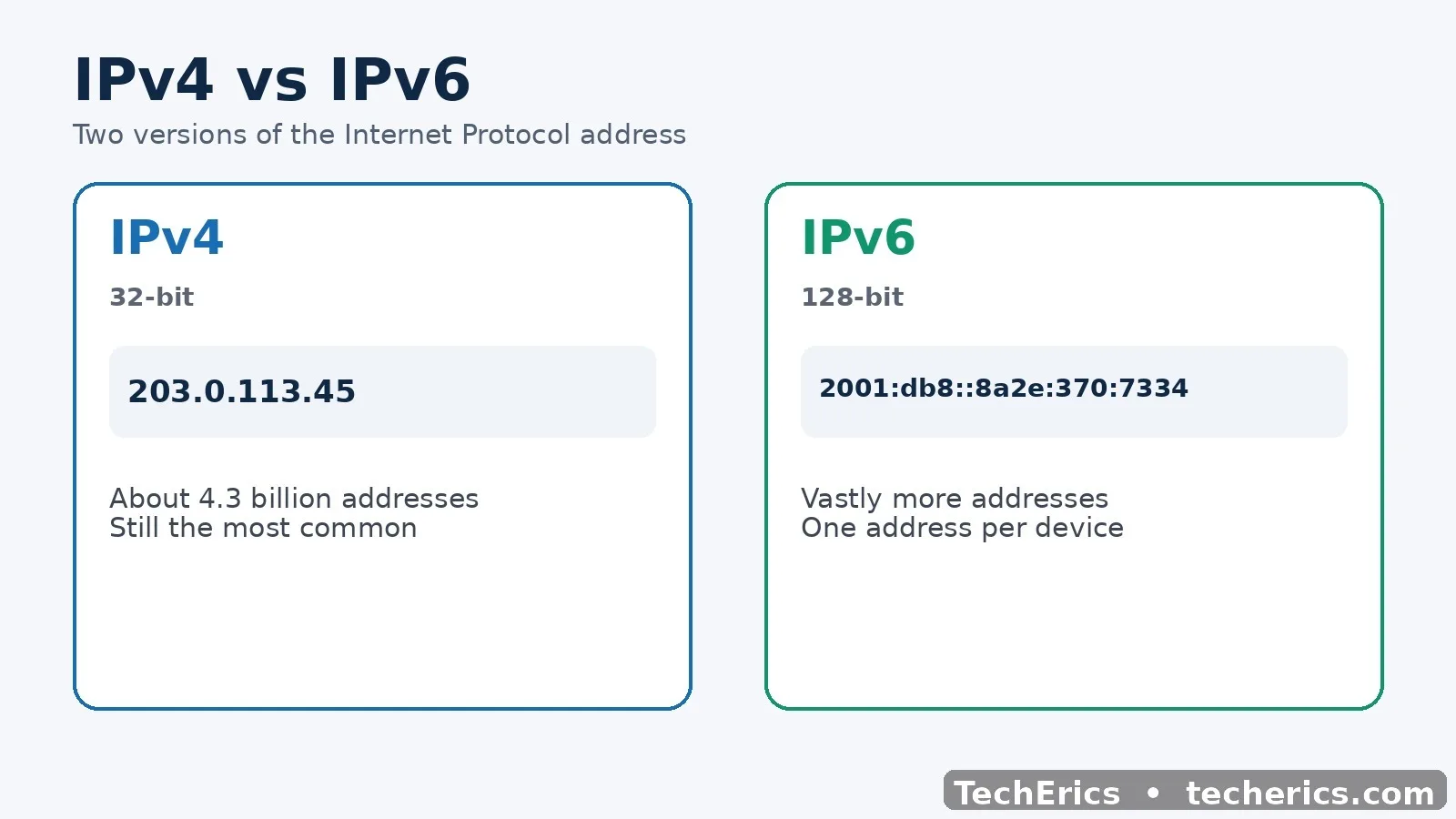
- IPv4: looks like 203.0.113.45, 32-bit — about 4.3 billion addresses, still the most common, but addresses are scarce, many homes and mobile networks share one public address (CGNAT).
- IPv6: looks like 2001:db8::8a2e:370:7334, 128-bit — vastly more addresses, growing fast, supported by most new networks, usually one address per device, no sharing needed.
IPv4 has been around since the early days of the internet, and 4.3 billion addresses sounded like plenty at the time. It was not. That is why many homes and mobile networks now share a single public IPv4 address between many users — a setup called CGNAT (Carrier-Grade NAT). It works fine for browsing, but it means your public IPv4 address may be shared with other households on the same network.
IPv6 was built to fix the shortage, with so many addresses that sharing is unnecessary. Most modern phones, laptops, and routers support it, and many networks now give you both: an IPv4 address for older services and an IPv6 address for newer ones. The TechErics tool detects and looks up both.
How to check your IP address — in 3 steps
Step 1: Open the IP Lookup tool
Open the IP Address Lookup tool. The moment the page loads, it shows your own public IP address and location at the top — you do not have to type anything or press any button to see your own details.
Step 2: Read your own details, or look up another address
To check a different address, type any IPv4 or IPv6 address — or a domain name such as example.com — into the lookup box and click Lookup IP. The tool resolves the domain to its address first, then shows the same details for it.
You can use this to check the server behind a website you run, an address that appears in your email headers, or an IP from your website's visitor logs.
Step 3: Read the results
The result shows your location, provider, and network details in one view, plus a map. The sections below explain what each field means — and which ones matter.
What an IP lookup shows you
Here is what the tool reports, and what each item actually means.
- IP address — The public address you are using right now.
- Country / Region — The country the address is registered in — usually accurate.
- City — The approximate city — often the city of your provider's equipment, not your home.
- ISP / Carrier — The company providing the connection (for example, your broadband or mobile operator).
- Organization / ASN — The network owner and its Autonomous System Number — the ID of the network on the internet.
- Timezone — The timezone of the detected location.
- Postal code — The approximate postal code for the location.
- Coordinates — Latitude and longitude of the approximate location, shown on a map.
- IP range — The block of addresses your address belongs to.
- Client information — What your browser reports: operating system, browser, device type, screen resolution, and language.
The country is the most reliable field. The city is a rough estimate — geolocation databases map address blocks to places using registry data and network measurements, and city-level accuracy is often within tens of kilometres. That is normal, and it is why the tool shows an approximate location, not an exact one.
The ASN is useful if you run a website or manage a server: it tells you which network an address belongs to, so you can tell a home broadband connection apart from a data centre or hosting provider.
Why does my IP location show the wrong city?
This is the most common surprise, and it is usually not an error. There are four normal reasons:
- Your provider's equipment is elsewhere. The database records where your provider's network equipment sits, not where your house is. If your provider routes your traffic through a city 100 km away, that is the city you will see.
- Mobile networks move. A phone on mobile data can show a city far from where you actually are, because the mobile operator's gateway is in another city — sometimes another state.
- A VPN or proxy is active. If you are on a VPN, the lookup shows the VPN server's location, not yours. That is exactly what a VPN is supposed to do.
- The database is out of date. Address blocks change owners, and databases take time to catch up. A block reassigned last month may still point at its old city.
If the country is right but the city is off by a neighbouring city, nothing is broken. If the country is completely wrong and you are not on a VPN, check whether a VPN app, a work profile, or a browser proxy is running in the background.
What an IP lookup cannot tell you
An IP address reveals far less than most people fear — and less than some websites imply.
- It cannot show your exact home address. A lookup shows, at best, an approximate city and your provider's name. Nobody can get your street address from an IP address using a public tool.
- It cannot show your name. There is no public record linking an IP address to a person. Your provider knows which customer used an address at a given time, but it shares that only under legal process.
- It cannot show the real location of VPN or mobile users. The lookup shows where the traffic exits — the VPN server or the mobile gateway — not where the person sits.
- It cannot look up a private address. Addresses such as 192.168.x.x, 10.x.x.x, and 172.16–31.x.x only exist inside home and office networks. They have no public location, so a public lookup cannot resolve them. The address your phone's Wi-Fi settings show you is usually one of these private addresses — the public one is your router's, and the tool shows that one.
If a website or a message claims it has found your exact house from your IP address, it is bluffing — or it got the information from somewhere else, such as an account you logged into.
Public vs private IP — which one do websites see?
Every device has two kinds of address, and mixing them up causes most of the confusion.
Public IP: the address your router gets from your provider. This is the one the whole internet sees. It is what the lookup tool shows, and it is the same for every device in your home.
Private IP: the address your router gives each device inside your home, such as 192.168.1.5 for your phone and 192.168.1.6 for your laptop. These only work inside your network. Your phone's Wi-Fi settings show the private address — that is why it looks different from the address the tool shows.
Neither is secret in the way a password is. Your public IP is visible to every website you visit — it has to be, or the website could not reply to you. What matters is not hiding the number itself, but knowing what it does and does not reveal, which is the section above.
How to check if your VPN is working
An IP lookup is the quickest VPN test there is.
- Open the IP Lookup tool with the VPN off and note your IP address and country.
- Turn the VPN on and connect to a server in another country.
- Reload the tool. If the VPN is working, both the IP address and the country should have changed to the VPN server's location.
If the country changes but the IP stays the same, the VPN is not routing your traffic. If nothing changes at all, the VPN app may be connected but leaking — try reconnecting, or check whether your browser is using a proxy that bypasses the VPN. A location leak is also worth checking after switching VPN servers: the new server's city should appear within a few seconds of reconnecting.
IP lookup vs WHOIS — which one do you need?
People often confuse the two, because both answer 'who is behind this address?' — but they answer it for different things.
- IP lookup tells you about a number: where an IP address is located, which provider owns the network, and what kind of connection it is. Use it for an address from your logs, a VPN check, or your own connection.
- WHOIS lookup tells you about a name: who registered a domain, when it was registered and when it expires, and which registrar manages it. Use it when you want to know who owns a website, whether a domain is free to buy, or when a domain will expire.
They complement each other. If you are checking a suspicious website, start with WHOIS to see who registered the domain and when — a domain registered last week deserves more caution than one registered ten years ago. Then use the IP lookup to see where the site is hosted. The WHOIS tool is here: WHOIS Domain Lookup
Common mistakes to avoid
- Panicking over the wrong city. A neighbouring city is normal. Only the country being wrong — with no VPN running — is worth investigating.
- Looking up your private IP. 192.168.x.x and 10.x.x.x have no public location. Look up your public IP instead — the tool shows it at the top of the page.
- Paying for an IP lookup. Location, ISP, and timezone for a public address are public information. A free tool shows all of it; a paid report adds nothing for everyday use.
- Assuming an IP identifies a person. At most it identifies a provider and a rough area. It is evidence for troubleshooting, not proof of who did something.
- Testing a VPN once and trusting it forever. VPN servers change, apps update, and leaks appear. Re-check with the tool whenever you switch servers or after an app update.
Try it now
See your own IP address, location, ISP, and timezone in seconds: IP Address Lookup — Free Online Tool
Related tool: WHOIS Domain Lookup — find out who registered a domain and when it expires.
Frequently asked questions
Is it legal to look up someone's IP address?
Yes. Looking up the public location and provider of an IP address uses public databases, and it is legal. What is not legal is using that information to harass, threaten, or attack someone — the lookup is fine, what you do with it is what matters.
Does my IP address change?
Usually, yes. Most home and mobile connections get a dynamic address that can change when your router restarts or your provider reassigns addresses. You may keep the same address for weeks, then find it has changed overnight. That is normal, and it is nothing to fix.
What is an ASN?
ASN stands for Autonomous System Number — a unique number that identifies a network on the internet. Your provider has one, Google has one, every large network has one. When a lookup shows the ASN, it is telling you exactly which network your address belongs to, which is how you can tell a home connection apart from a hosting provider or data centre.
Can a website see my real IP if I use a VPN?
If the VPN is working properly, no — the website sees the VPN server's address. But a misconfigured VPN can leak your real address through WebRTC or DNS requests. The check above (compare the tool's result with the VPN on and off) is how you confirm there is no leak.
Why does my IP show a different country on mobile data?
Mobile operators route traffic through gateways that may sit in another state or even another country. The lookup shows where your traffic exits the operator's network, not where your phone is. On Wi-Fi at home, the location is usually closer to correct.
Do I need to install anything to check my IP?
No. The lookup runs in your browser — open the page and your public IP, location, and provider appear immediately. There is nothing to download and no account to create.
What is the difference between IPv4 and IPv6?
IPv4 is the older format (for example, 203.0.113.45) with about 4.3 billion addresses — so scarce that many networks now share one public address between many users. IPv6 (for example, 2001:db8::8a2e:370:7334) has vastly more addresses, so each device can have its own. Most modern networks support both, and the tool looks up either one.
Can I hide my IP address completely?
You can mask it with a reputable VPN or the Tor Browser, so websites see the VPN or Tor exit address instead of yours. You cannot browse the internet with no address at all — something has to receive the reply. A VPN hides your address from websites; it does not hide it from the VPN provider itself, so choose one you trust.