TECHERICS
How to Compress Images Without Losing Quality (Free Online)
Compress JPG, PNG and WebP images online for free without losing quality. Pick the right format, shrink the dimensions first, and keep the file small — no upload, no signup.
Contents
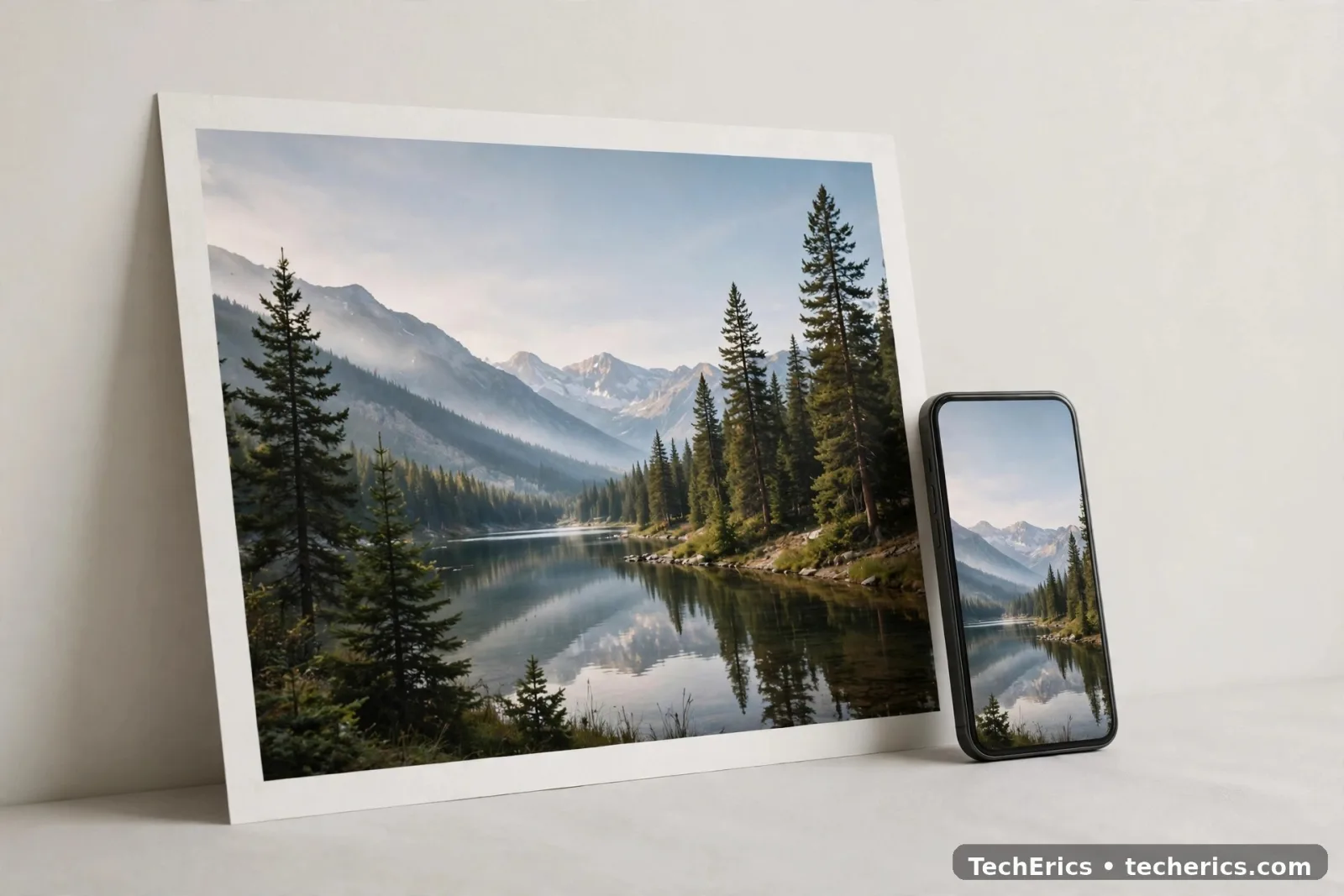
A 4 MB phone photo does not belong on a website, in an email, or on a form that allows 200 KB. It slows the page down, eats your data, and gets rejected by upload limits. The fix takes less than a minute: compress the image. Done right, nobody can tell the difference — the photo looks the same, the file is a fraction of the size.
Try the free Image Compressor — it shrinks JPG, PNG and WebP images in your browser, no signup and no upload.
Compress in 3 steps
- Drop your image in. Open the tool and drag your photo in, or browse and pick it. JPG, PNG and WebP all work.
- Pick a format and a quality. For a photo going on a website, choose WebP at quality 75–85. That is the sweet spot: much smaller file, no visible change.
- Check the new size, then download. The tool shows the compressed size next to the original. Happy with it? Download. Got several photos? Drop them all in at once and download everything as one ZIP.
That is the whole process. The rest of this guide is about getting the best result from those three steps — because the two mistakes most people make are picking the wrong format and squeezing the quality too far.
Which format should you pick?
The format matters more than the quality slider. Picking the right one can halve the file before you touch anything else.
| Format | Best for | Watch out for |
|---|---|---|
| WebP | Photos on websites and apps | Older software may not open it |
| JPEG | Photos for email, print services, older systems | No transparency; quality drops if you re-save it again and again |
| PNG | Logos, screenshots, graphics with sharp edges or transparency | Photos stay large — it is lossless, so it cannot shrink a photo much |
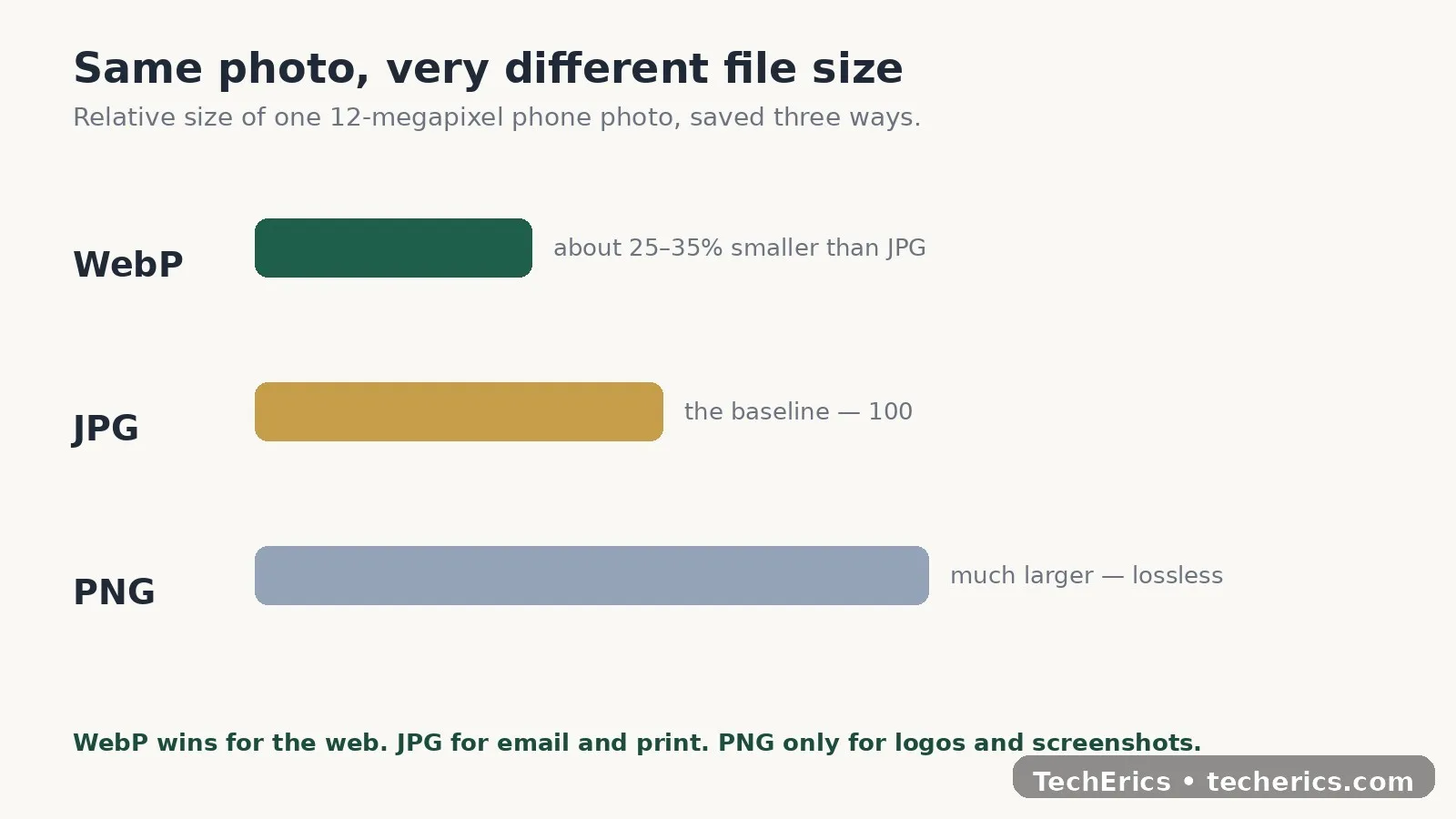
For a website photo, WebP is usually 25–35% smaller than JPEG at similar quality, and it supports transparency too. For a screenshot full of text, try PNG first and compare — sharp edges are where PNG earns its keep. And if a PNG photo refuses to get small, that is the format, not the tool: convert it to WebP or JPEG and watch the size fall.
How much smaller can it get?
Lowering quality from 100 to 80 often halves the file size with little visible change. That is because JPEG and WebP use lossy compression: they throw away detail your eye is least likely to notice. Go below about 60, though, and the damage shows — blocky patches and colour banding, especially in skies and skin tones.
The bigger win is often not quality at all, it is size. A 4000 × 3000 phone photo displayed at 1200 px wide carries more than 10× the pixels it needs. Shrink the dimensions first with the Image Resizer, then compress. You get a smaller file with less quality loss than squeezing quality alone.
What size should you aim for?
| Use | Target size | Width |
|---|---|---|
| Website hero image | Under 200 KB | 1600–2000 px |
| Blog or product image | Under 100 KB | 800–1200 px |
| Email attachment | Under 1 MB each | As shot, compressed |
| Government or exam form photo | Check the form's exact limit (often 20–200 KB) | As the form asks |
These are targets, not rules. A detailed landscape photo will always be bigger than a plain product shot at the same quality — that is normal.
4 mistakes that ruin compressed images
- Deleting the original. Always keep it. Compression is a one-way trip for JPEG and WebP — you cannot get the thrown-away detail back.
- Compressing the same JPEG again and again. Every re-save loses a little more. Compress once, from the original, at the quality you need.
- Compressing a PNG photo and expecting miracles. PNG is lossless. For photos, convert to WebP or JPEG instead — the Image Converter handles a whole batch at once.
- Skipping the preview. Zoom to 100% and look before you download. If text edges look fuzzy or the sky looks striped, raise the quality a little instead of accepting it.
One more practical tip: cut away empty edges or unwanted parts with the Image Cropper before compressing. Fewer pixels means a smaller file, for free.
Is it private?
Yes. The compression runs on your device, in your browser, using the built-in canvas encoder. Your photos are not uploaded to any server — which is also why it works without an account. If you need a colour from an image while you are at it, the free Color Picker tool reads it straight from the picture.
The short version
Compressing an image is not about finding a magic setting. Pick the right format for the job, start at WebP quality 75–85 for web photos, shrink the dimensions before you squeeze the quality, and keep the original. Do that, and your images load fast, fit every limit, and still look like themselves.
Compress your first image now with the free Image Compressor — batch, ZIP download, no upload.
Frequently asked questions
What is the best format for website images?
WebP, in most cases. It is usually 25–35% smaller than JPEG at similar quality and supports transparency. Use JPEG only when the place you are sending the image to does not support WebP.
How much can I shrink a photo without visible quality loss?
A lot. Dropping quality from 100 to 80 often halves the file size with little visible change. Stay above 60 to avoid blocky areas and banding in skies and skin.
Does resizing before compressing help?
Yes, often more than the quality slider. A 4000 px wide photo shown at 1200 px carries over 10× the pixels it needs — resize first, then compress.
Can I compress images without uploading them anywhere?
Yes. This tool processes images on your device in the browser, so nothing is uploaded to a server and no account is needed.
What size should a blog image be?
Aim for under 100 KB at 800–1200 px wide. For a hero image, under 200 KB at 1600–2000 px wide is a good target.
Why does my image still look blurry after compressing?
Usually the quality was set too low, or a JPEG was compressed again from an already-compressed copy. Start from the original file, raise the quality above 60, and check the preview at 100% zoom before downloading.